Scanning Bar Code Data into an Oracle Application Express Form
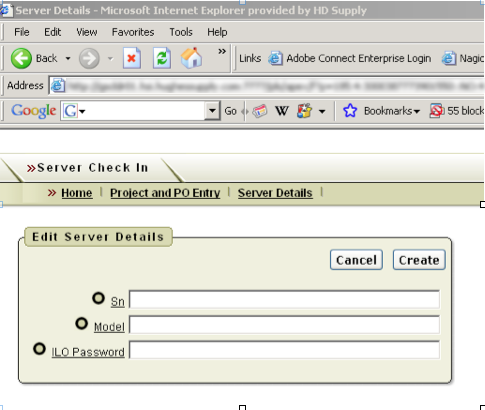
Server Check in Form
I created (with a lot of help from Edric DeArmas – an absolute Oracle GOD at HD Supply) a Server Check In form in Oracle Application Express (APEX). When servers come in they have tags with barcodes on them containing data for the serial number, model number and a default password. This data needs to be entered and maintained in a form that can later be tied to a complex APEX workflow.
Problem
The barcode scanner is one of those plug-in ready to go USB models, needing no driver or software. You can just open up Word, Notepad or Excel and start scanning. After every bar it scans it automatically appends a CR character key (carriage return). Like this:
293765-001
ILOUSE730N19K
USE730N19K
2H9XCM5X
Each one of these items had to populate a single form field but when scanning them into the form this happens:

Because the TAB character key, not the CR character key moves the focus to the next form element, all the data populates one field.
Solution
Here’s what I did:
1. Clicked Edit Page

2. Clicked the Item associated with the first text field ‘Sn’

3. Clicked the Element Tab

4. Put the following JavaScript into the HTML Form Element Attributes:
onkeydown="if (event.keyCode==13) {event.keyCode=9}"
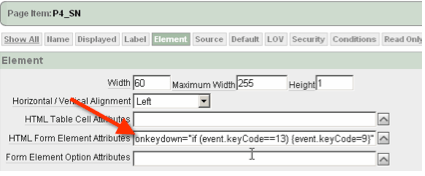

 keyCode==13 represents the carriage return and keyCode=9 is the tab character.
Master Detail Forms
Master Detail Forms are different because the fields are not represented as elements.
The goal is to move from field to field then, upon reaching the last field in the row, automatically create a new row. 

Here’s how to do this with a Master Detail form:
Go to the page in your app with the Master Detail form (should look something like this):

View the source of this page in your browser to find the input id’s of the form elements:
I prefer to use Firefox because it’s got some great plugins to view page source 

Take a note of the first seven characters of the input id. In this example it’s f04_000.
Get into edit mode for your Master Detail form page.
In the Page Rendering Section, click on the link next to the HTML Header 

Click the Show All button so you can edit both the HTML Header and the HTML Body Attribute sections .

Paste the following JavaScript Code in the HTML Header text box. Make sure to replace the f04_000 with the first 7 characters of the form field ids from your form:
<script language="JavaScript" type="text/javascript">
<!--
function focusToSN(){
var x=document.getElementsByName("f04");
var y='f04_000' + x.length;
if (document.wwv_flow.elements[y] != null)
{
document.wwv_flow.elements[y].focus();
}
}
htmldb_delete_message='"DELETE_CONFIRM_MSG"';
//-->
</script>
In order to call this function when the page loads paste this into the HTML Body Attribute 
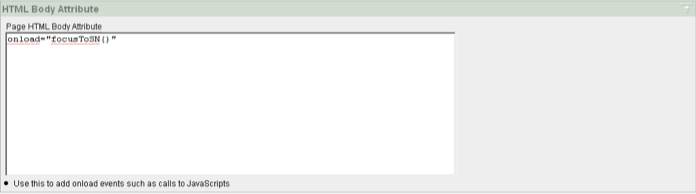
You should then be good to go!

 Open Source and the Magic LAMP
You really dont need to do this, most barcode scanner come with a configuration chart …… you can easily configure the scanner to return a TAB after each scan.